If your teacher just told you to post on Flipgrid and you have no clue where to start, this guide is for you. Flipgrid is a video discussion platform built for classrooms. Instead of typing answers, you record a short video of yourself talking, your teacher sees it, and your classmates can watch and reply back with their own videos. It feels awkward the first time. After that, it takes about two minutes.
What Is Flipgrid and How Does It Work?
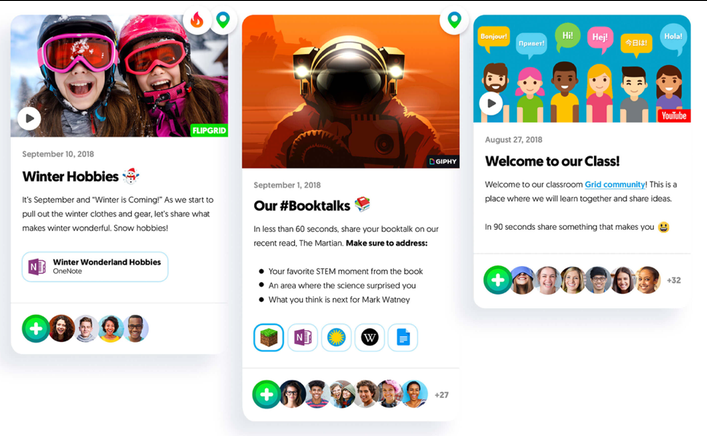
Flipgrid is a free tool that schools use to run video-based discussions. Your teacher posts a question or prompt and you respond by recording a video. Everyone in your class can see each other’s videos on a shared board, like a group chat but with faces and voices instead of text.
Videos can be as short as 15 seconds or as long as 10 minutes, depending on what your teacher allows. You can add filters, stickers, drawings and even a virtual background before you submit. If you hate being on camera, there are ways around that, too, and we cover that below.
What Is Flipgrid Used for in the Classroom?
Whether your class is in person, hybrid, or online, Flipgrid works the same way. Your teacher creates a class grid and posts topics inside it. Each topic is an assignment or discussion question. You go in, record your response and submit it to the grid.
Your teacher can see everything, reply to your video and grade it. Your classmates, depending on how the teacher sets things up, can also watch your video and reply with their own. It replaces the kind of back-and-forth discussion you would normally have in class, except you can do it from anywhere.
What You Need Before You Start?
Make sure you have one of these:
A phone with the Flipgrid app installed, which is available on iPhone and Android, or a computer or tablet with a working camera and a browser.
You also need your school Google or Microsoft account. A personal Gmail usually will not work. And you need the join code or link that your teacher shared, which they usually post on Google Classroom, Microsoft Teams, or in an email.
How to Log Into Flipgrid?
Go to flip.com on your browser or open the Flipgrid app on your phone. Click the Google or Microsoft button and select your school account from the list. Do not use a personal email unless your teacher says it is okay.
If you are on the app, tap Sign In and pick your school account the same way.
Once you are in, you will land on your class grid where all your teacher’s topics and assignments are listed.
How to Use Flipgrid Step by Step?
Step 1: Get Your Teacher’s Code or Link
Your teacher will give you either a short join code or a direct link to the assignment. Look for it on Google Classroom, Teams, or wherever your class communicates. If you have the link, click it and you will land straight on the assignment. If you have a code, go to flip.com, click Join a Group and type it in.
Step 2: Read the Prompt
Once you are inside the topic, read the instructions your teacher left before you do anything else. Some teachers also record a short video explaining the task so watch that too if it is there.
If reading is hard for you, look for the Immersive Reader button. It reads the prompt out loud for you and it is already built into Flipgrid, so you do not need to install anything extra.
Step 3: Start Recording
When you are ready, tap or click the big red Record a Response button. Your camera turns on and you will see yourself on screen. A countdown appears before it starts, so you have a second to get comfortable.
Talk clearly and answer what the teacher asked. You do not have to get it perfect in one take. You can pause mid-recording, delete the last clip and redo just that part without starting over. You can also record in small pieces, one short clip at a time and Flipgrid stitches them together automatically.
Step 4: Use the Creative Tools
Before you submit, you can add extras to your video.
Filters and backdrops let you change how your video looks or swap your real background for a virtual one.
Stickers and emojis let you drag fun shapes onto your video. If you are camera-shy, you can put a big sticker over your face, and that is completely allowed.
Text and drawing tools let you type words on screen or draw with your finger to highlight something.
Whiteboard mode splits your screen so half of it shows a whiteboard. This is great for math problems or walking through your work step by step.
Mic-only mode lets you record just your voice over a still image if you do not want to appear on camera at all.
Step 5: Trim Your Video
After recording, you will see a simple editing screen. Drag the edges of your clip to cut off any awkward beginning or ending.
Step 6: Take Your Selfie
Right before submitting, Flipgrid asks you to take a quick selfie. This becomes the thumbnail image for your video on the class board. Tap the button and you are done with this step.
Step 7: Submit
Click Submit, and your video goes up on the class grid. Your teacher and classmates can now see it.
Step 8: Watch and Reply to Classmates
If your teacher enabled it, you can scroll through the board and watch everyone else’s videos. To reply, click on a classmate’s video and tap Add a Comment to record a short video response. This is how a real discussion happens on Flipgrid and it works just like talking in class, but on your own schedule.
How to Use Flipgrid on Your Phone?
Download the Flipgrid app, open it, sign in with your school Google or Microsoft account, and enter your teacher’s join code.
Everything works the same as the website. Recording, editing, adding stickers and submitting all work the same way. The app is actually easier to use for recording because your phone camera is already right there.
How to Use Flipgrid Without Showing Your Face?
You have two options. First, you can switch to mic-only mode before you start recording. Your voice records over a still background image and your face never appears. Second, you can use the sticker tool to drag a large sticker over your face during the video. Both options are completely fine and your teacher will still be able to hear and grade your response.
How to Reply to Someone on Flipgrid?
Go to the class board and find a classmate’s video. Click or tap on it to open it. Below the video, you will see an option that says Add a Comment. Tap that and record a short video reply. It gets attached to their original post so everyone can follow the conversation.
Common Problems and What to Do
Your camera is not working on a computer means you need to go to your browser settings and make sure Flipgrid has permission to use your camera. On a phone, go to Settings, find the Flipgrid app and turn camera access on.
You submitted the wrong video. Some teachers allow students to delete their own submissions, and some do not. Message your teacher directly and explain what happened.
You cannot log in. Make sure you are using your school account and not a personal one. If it still does not work, ask your teacher or your school’s tech team to check your account.
The join code is not working. Check that you typed it exactly right. If it still fails, ask your teacher to resend the link.
Your video will not upload. Check your internet connection. If it is slow, move closer to your router or switch from mobile data to Wi-Fi.
FAQs
Is Flipgrid free for students?
Yes, completely free. You pay nothing.
What is the difference between Flipgrid and Flip?
They are the same product. Microsoft renamed Flipgrid to Flip in 2022. Many teachers and students still call it Flipgrid and you will see both names used online.
How do you log into Flipgrid?
Go to flip.com or open the app, click Sign In and choose your school Google or Microsoft account.
How long can a Flipgrid video be?
Your teacher controls this. It can be anywhere from 15 seconds to 10 minutes. Check your assignment to see the limit your teacher set.
Can people outside your class see your Flipgrid videos?
No. Your videos are only visible to people inside your class grid unless your teacher made the grid public, which most teachers do not do.
Can you use Flipgrid without a camera?
Yes. Switch to mic-only mode to record just your voice over a still image. You do not have to show your face.
Does Flipgrid work on a phone?
Yes. Download the app from the App Store or Google Play and it works exactly like the website.
Can your teacher see if you watched someone’s video?
In most cases, yes. Flipgrid tracks activity and your teacher may be able to see who watched what. Watching and replying to classmates often counts toward your participation grade.
What if you do not have a school Google or Microsoft account?
You need one to join most class grids. Ask your teacher or your school’s tech team to set one up for you.
Can you re-record before submitting?
Yes, as many times as you want. Delete the last clip and record again. Nothing gets submitted until you tap the submit button.
You Are Ready to Go
Flipgrid is one of those tools that looks confusing from the outside but makes complete sense the moment you actually try it. You get the code from your teacher, log in with your school account, read the prompt, hit record, say what you have to say, add a selfie and submit. That is truly all there is to it.
If something goes wrong the first time, do not stress about it. Check your camera permissions, make sure you are using the right account and try again. Most problems sort themselves out in one extra step.
The more you use Flipgrid, the faster it gets. Soon, you will be recording responses and replying to classmates in just a few minutes, and it will feel completely normal.