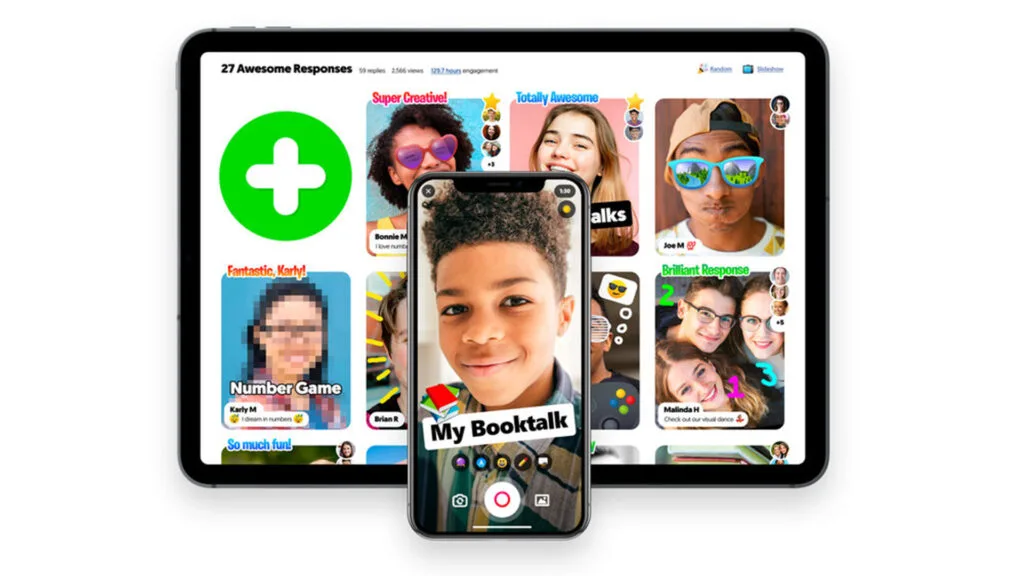
Flipgrid is a wholesome tool. It gives students a voice. It makes classrooms feel alive. Short videos, video replies, and a safe space where only classmates could see each other, it’s really something special.
But now, you are looking for something new. Something that gives you that same feeling. Something your students can use without too much confusion.
There are some really good options out there. Some of them are built just for teachers. Some are great from a student’s point of view. A few work well for both.
Flipgrid Alternatives for Teachers
These tools are picked with teachers in mind. They give you control over your classroom, help you collect and manage student videos, and let you run things the way you want.
Gravity | The Simplest Switch
Gravity lives at usegravity.io and it was built with teachers in mind after Flipgrid closed for most users. It works a lot like Flipgrid did. You create a classroom community, post a prompt, and students record their video replies. They can also reply to each other’s videos.
The setup is fast. Students do not spend ten minutes trying to figure out how to post. Teachers get one clean place to see everything.
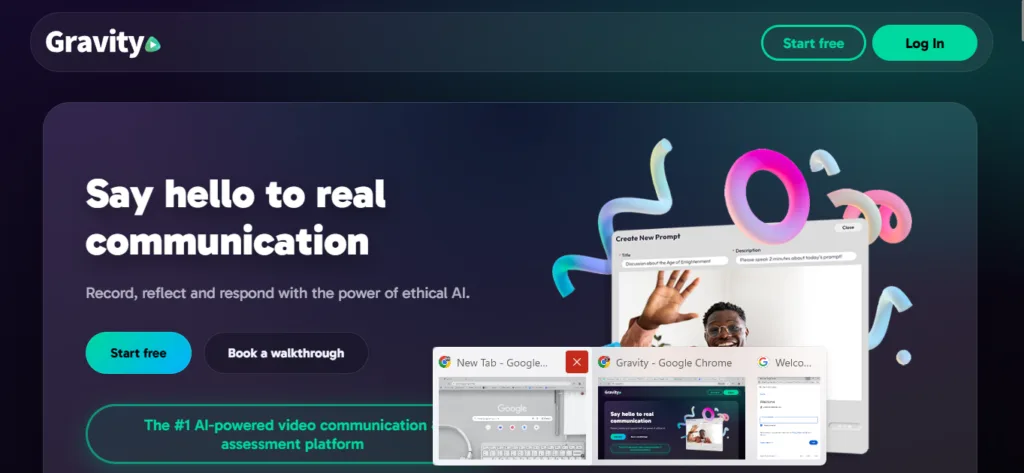
It has some smart features too. It can auto-transcribe student videos, pull out keywords, and even analyze voice tone. These are available on the free plan in limited amounts.
Free plan: One community, unlimited participants for K-12 teachers, one minute per video.
Paid plan: $6 per month for K-12 educators. Removes time limits and adds unlimited communities.
Good for: Any grade. Teachers who want the most Flipgrid-like experience right away.
Padlet | Great for Discussion Boards
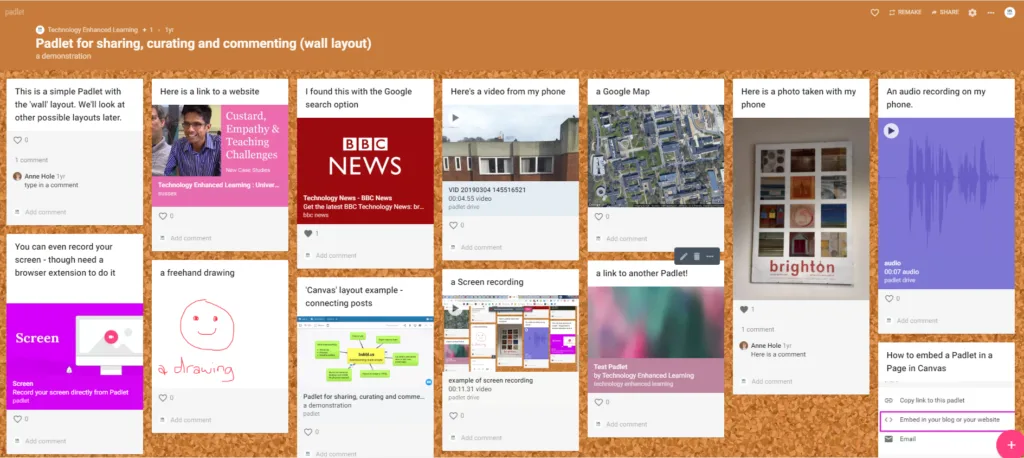
Padlet lets you set up a board where students post videos, images, text, or links. The Grid and Stream layouts work especially well for video discussions. Students can comment on each other’s posts, and you can even allow video comments.
As a teacher, you get strong control. You can turn on an approval setting so no student post goes live until you review it first. There is also automatic content filtering to catch anything inappropriate before you even see it.
Free plan: Three padlets at a time. You will need to archive old ones or upgrade for more.
Paid plan: Padlet for Schools removes the limit. Pricing is per school.
Good for: Middle school and high school. Weekly discussions, introductions, and project sharing.
MirrorTalk | When Reflection Matters Most
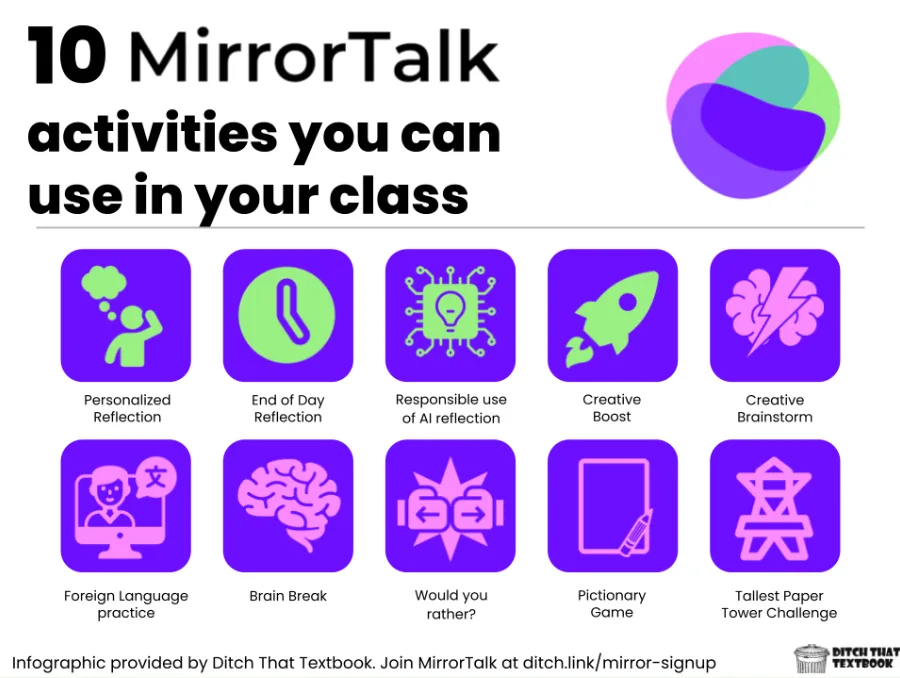
MirrorTalk is unlike anything else on this list. When a student records a reflection video, an AI avatar guides them through follow-up questions to help them think deeper. The tool then analyzes their response, looking at emotional tone, quality of thinking, and how well they reflected.
The teacher gets a summary and a score for each student instead of watching all the videos one by one. For a class of 30 students, that saves a lot of time.
Free plan: 50 AI-analyzed reflections per month, unlimited groups, Spanish support.
Paid plan (MirrorTalk One): $100 per year. Unlimited reflections, co-teacher access, Common Core alignment.
Good for: Middle school and high school. Reflection assignments, speaking and listening skills, and social-emotional learning.
Edpuzzle | For Video Lessons With Built-In Questions
Edpuzzle works differently from the others. You upload a video or pick one from YouTube, and then you add questions right into it. Students watch the video and answer your questions as they go. They cannot skip ahead without responding.
You can see exactly who watched the video and how they answered. This is very useful for checking if students actually understood the lesson.
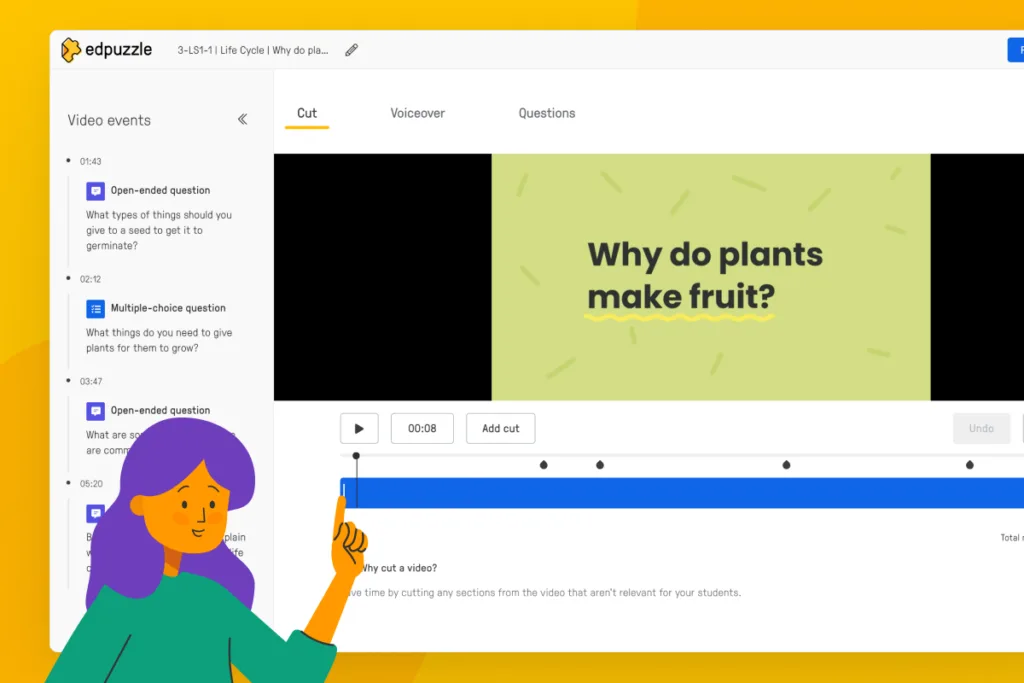
Free plan: 20 edpuzzles, unlimited students.
Paid plan: $12.50 per month for Edpuzzle Pro. More storage and better reporting.
Good for: All grades. Flipped classroom lessons, comprehension checks, and language learning with video.
Screencastify Submit | Clean and Simple Video Collection
Screencastify Submit is the easiest way to collect student videos. You create an assignment link. Students click it, record their screen or webcam, and the video goes straight to your Google Drive or Google Classroom. Students do not need accounts.
There is no class feed, no commenting between students. It is purely for collecting work. That is its strength.
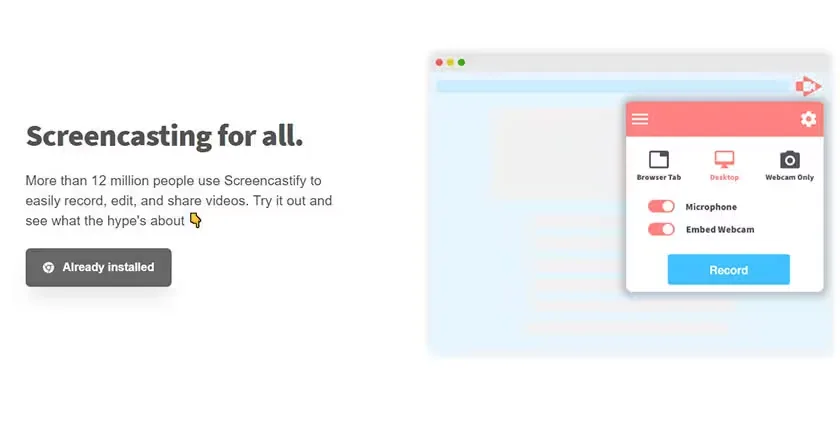
Free plan: Available for basic use.
Good for: Any grade. Teachers using Google Classroom who just want students to submit video work without any extra steps.
Flipgrid Alternatives for Students
These tools are picked for the student experience. They are easy to use, creative, and give students a real way to share their work or talk to classmates.
Seesaw | Made for Young Learners
Seesaw was already a favorite for elementary classrooms before Flipgrid closed. Students can record short videos that only their class sees. They can also draw, take photos, and add voice notes. Families can see their child’s work too if the teacher chooses to share it.
The design is simple on purpose. Big buttons, clear steps, nothing that confuses a six-year-old.
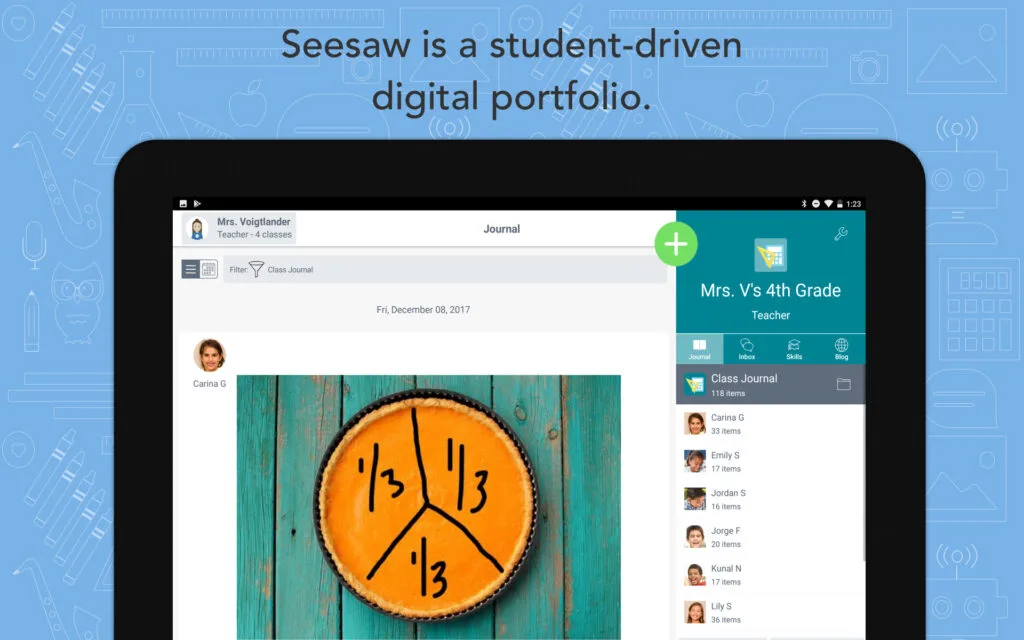
Free plan: Available with good features for individual teachers.
Paid plan: Seesaw for Schools adds more storage and admin tools.
Good for: Grades K through 5. Portfolios, reading responses, reflections, anything shared with parents.
VoiceThread | Respond to Things as a Class
VoiceThread takes a slightly different approach. A teacher or student uploads something, a photo, a slide, a document, or a video. Then everyone else leaves comments on it. Comments can be video, audio, or text.
This is great for reacting to shared content together as a class. Students can hear and see each other’s thoughts without a live meeting.
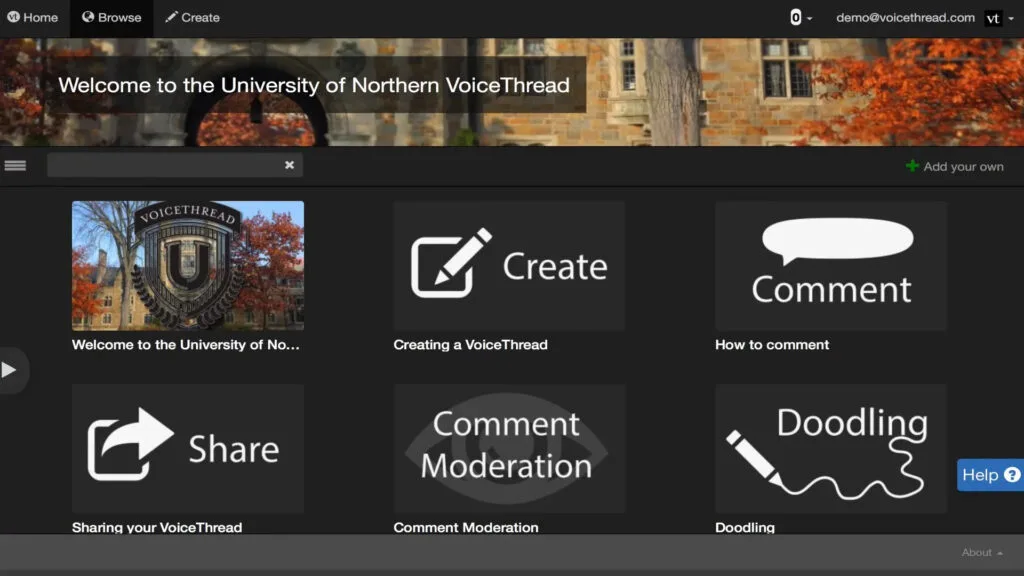
Free plan: Available with limited features.
Paid plans: Education pricing available on their site.
Good for: Middle school, high school, and university. Art class, book discussions, oral language practice.
Adobe Express | For Creative and Fun Video Work
Adobe Express has a feature called Animate with Audio. Students record their voice and an animated character speaks along with them. It is really fun, especially for storytelling or presentations. The results look polished and students enjoy making them.
It is not a discussion tool. Students will not watch and reply to each other like on Flipgrid. But for creative individual assignments, it stands out.
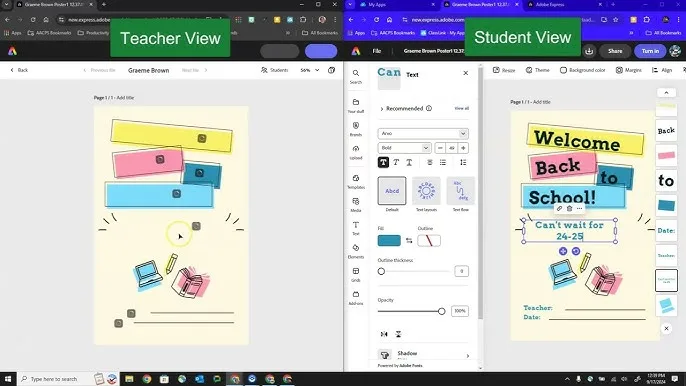
Free plan: Completely free for K-12 teachers and students through Adobe for Education.
Good for: All grades. Storytelling, creative projects, presentations, language arts.
Canva for Education | Record Yourself With Your Slides
Most students already know Canva. What many do not know is that you can record yourself while your slides are on screen. Students build a presentation, click record, and talk through it with their face on camera. It looks like a real video presentation.
There is no class feed or video reply system. But for presenting and explaining their thinking, it is clean, free, and already familiar.
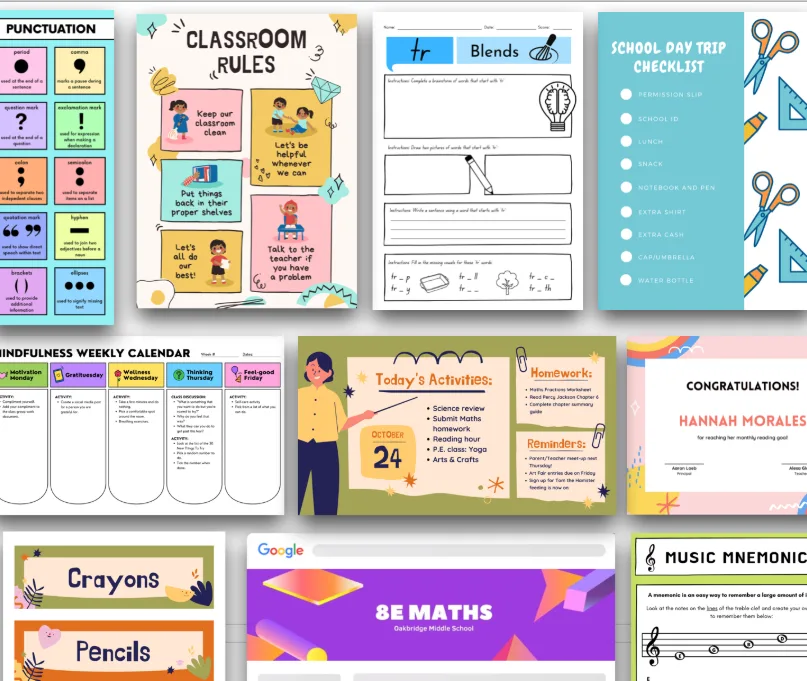
Free plan: Completely free for verified teachers and their students.
Good for: All grades. Research projects, book reports, science explanations, and any assignment where a student needs to present.
At A Glance
| Tool | Best For | Video Replies | Free Option |
| Gravity | Teachers and students | Yes | Yes (K-12) |
| Padlet | Teachers | Yes | 3 boards free |
| MirrorTalk | Teachers | No | 50/month |
| Edpuzzle | Teachers | No | Yes |
| Screencastify Submit | Teachers | No | Yes |
| Seesaw | Young students | Limited | Yes |
| VoiceThread | Older students | Yes | Trial |
| Adobe Express | Students | No | Yes (K-12) |
| Canva for Education | Students | No | Yes |
FAQs
What is the closest free replacement for Flipgrid?
Gravity is the most similar free option for K-12 teachers. Students can record videos, reply to each other, and work inside a closed classroom space that only the teacher controls.
Can young children use these tools?
Seesaw is built for young children. Big buttons, simple steps, and a safe space. Adobe Express and Canva for Education also work well for younger students on creative projects.
Do students need accounts for all of these tools?
Not for all of them. Screencastify Submit does not require student accounts. Students just click a link and record. Padlet also has a guest option depending on how the teacher sets up the board.
Which tool works best with Google Classroom?
Screencastify Submit sends videos straight to Google Drive. Padlet and Seesaw also connect well with Google Classroom through shared links or LMS integration.
What if I want students to see and comment on each other’s videos?
Padlet and Gravity both support this. Gravity allows full video replies. Padlet allows video and text comments on each post.
Are any of these completely free with no limits?
Canva for Education and Adobe Express for K-12 are both fully free for verified teacher accounts with no cap on student projects. Seesaw’s free plan is also generous for individual teachers.
Is there a tool that saves teachers time when reviewing student videos?
Yes. MirrorTalk analyzes each student’s video and gives the teacher a summary and score instead of making you watch every single video. That is a big time saver for reflection-heavy assignments.
What if my students already know how to use Canva?
Just add the recording feature to their next assignment. There is no new tool to learn. They open Canva, build their slides or graphic, click record, and they are done.
Picking the Right One
For teachers who want something close to Flipgrid with video replies and class discussions, Gravity is the most direct path. Padlet is a strong second choice with more moderation tools.
For younger students in grades K through 5, Seesaw is the clear pick.
For middle and high school students doing creative work, Adobe Express and Canva for Education are both excellent and already free.
If you use Google Classroom, Screencastify Submit connects directly to it with almost no setup.
And if you care most about how deeply students are thinking, MirrorTalk is the one worth exploring.
You may not find one tool that does everything. But picking two that work together often gives you more than Flipgrid did on its own.